LIVEEarly Access since Oct 9, 2026Game v0.1.50.17746Steam reviews Very Positive · 91% (209)Facts checked Oct 11, 2026Patch notes →
SHOP CUSTOMIZATION & NOREN EDITOR GUIDE

Japanese Ramen Simulator Shop Customization Guide: Custom Noren, Signs & Interior Design (2026)

Design your own noren and shop signs with the in-game brush-and-text editor, carry and rearrange furniture in placement mode, and dress your dining room with daruma, maneki-neko and bonsai — every shop customization system confirmed so far.

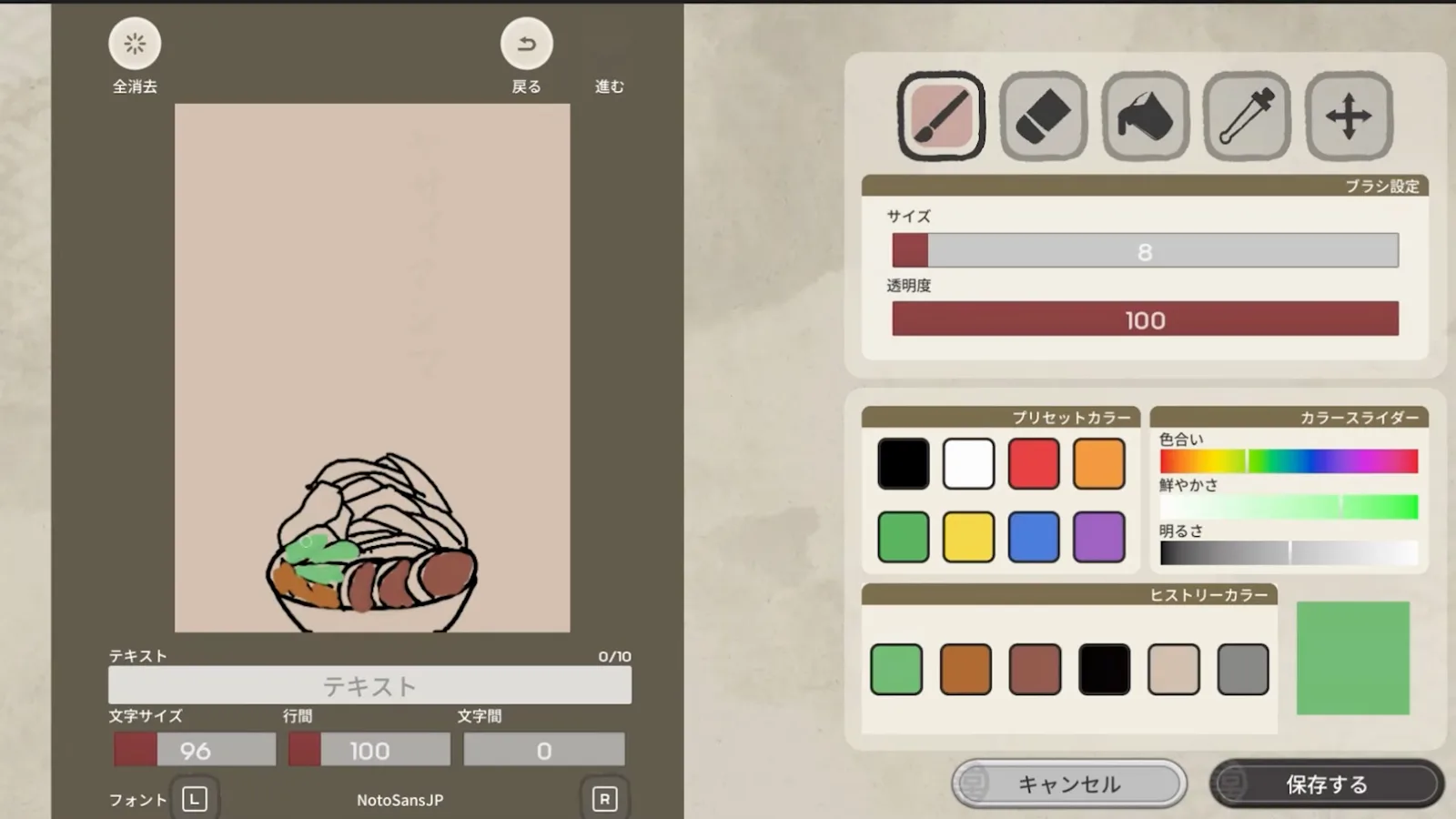
Japanese Ramen Simulator opens a noren design editor with brush, eraser, fill and eyedropper tools, preset color swatches, size and transparency sliders, and a hand-drawn ramen bowl on the canvas
📸 The star of this guide: the in-game design editor shown at 0:29 in the official trailer — note the 保存する (save) button in the bottom-right corner.

Shop Customization at a Glance

Japanese Ramen Simulator lets you stamp your own identity on the shop: draw your own noren curtains and signs, then rearrange the entire restaurant piece by piece. Here is every customization system confirmed in the official trailer and press screenshots.

Noren & Sign EditorBrush + Vertical Text

8-color preset palette, size & transparency sliders, 10-character vertical text, save button

Placement ModeCarry & Rearrange

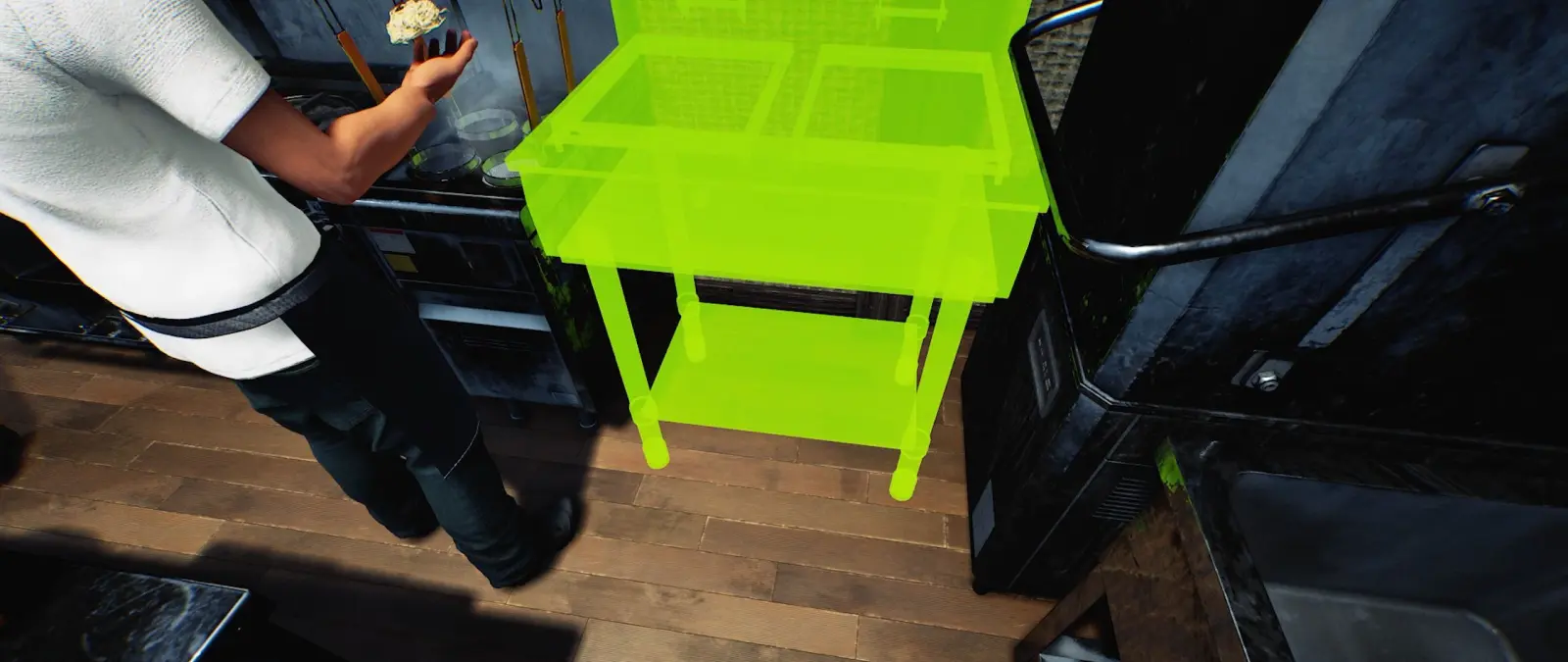
A green highlight previews exactly where carried furniture will drop

Interior DecorDaruma · Neko · Bonsai

Lucky charms, hanging banners and menu posters dress the dining hall

Sources & Trailers

Images from the official trailer and press shots. For latest My Designs rules see Day 1 patch v0.1.48.17626 (Early Access Oct 9, 2026).

Customizing Your Shop: 4 Things in Early Access

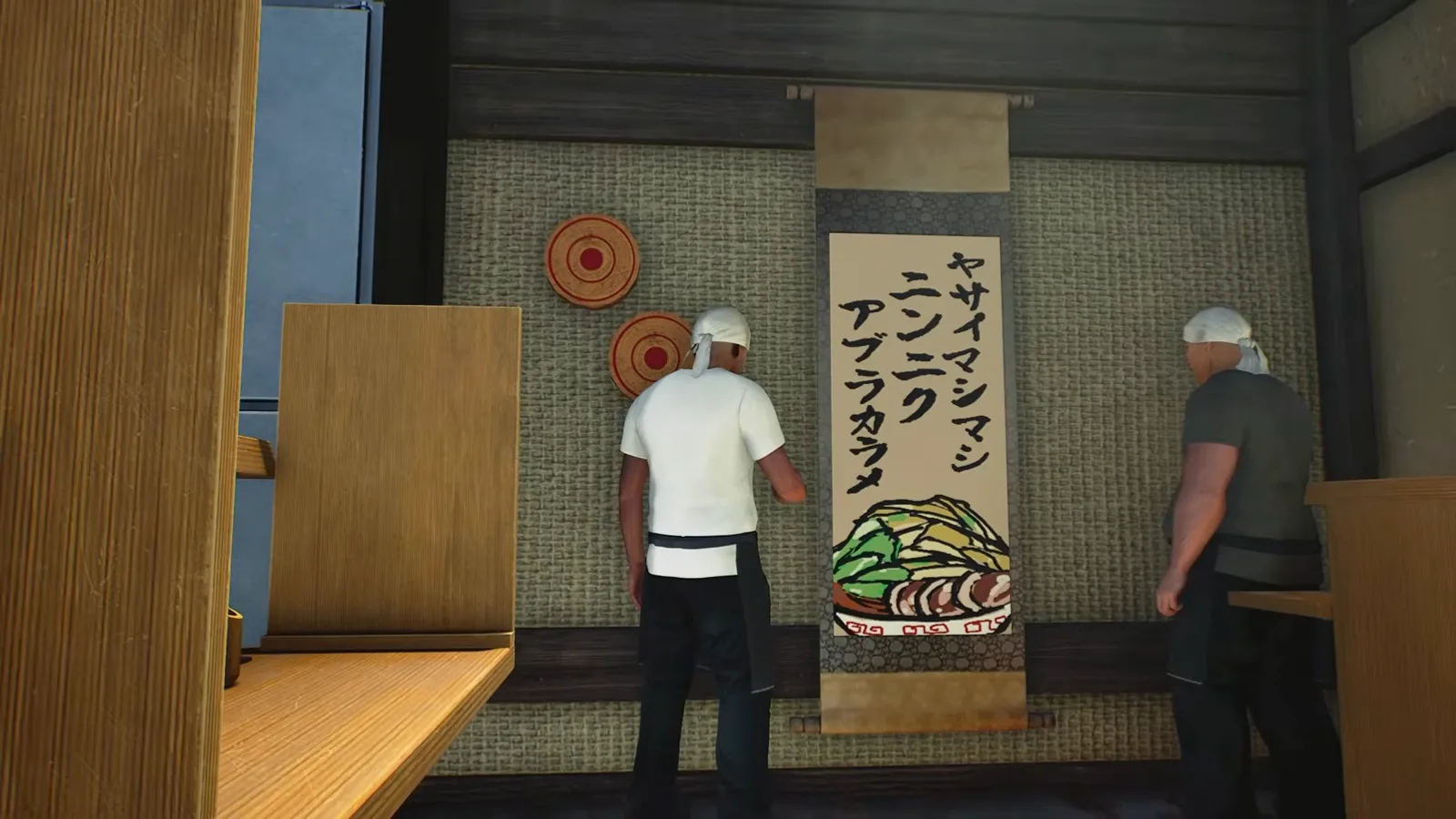
Japanese Ramen Simulator staff hang a finished custom noren on the dining room wall, its hand-drawn ramen bowl and vertical lettering matching the design just saved in the editor
PHASE 01

Step 1: Draw Your Own Noren & Signs in the Design Editor

The design editor shown at 0:29 in the official trailer hands you a brush, eraser, paint bucket, eyedropper and move tool; size and transparency sliders (size 8, transparency 100 on screen); an 8-color preset palette plus hue, vividness and brightness sliders; a color history row; and clear-all, undo and redo in the top-left. The text tool sets up to 10 characters vertically in the NotoSansJP font with adjustable text size, line spacing and letter spacing. Press 保存する (save) and the finished artwork is hung inside your shop as a noren banner.

📸 The same trailer, seconds later at 0:31: the saved design now hangs as a finished banner inside the dining room.
A bright green placement highlight covers a stainless prep table while a Japanese Ramen Simulator chef carries it into a new spot beside the refrigerator
PHASE 02

Step 2: Carry Furniture Anywhere with Placement Mode

Nothing is bolted down. A 4Gamer press screenshot shows a chef carrying an entire prep station across the kitchen while the furniture itself glows bright green — that highlight is the placement-mode preview, confirming the footprint a piece will occupy before you drop it. Tables, counters and cooking equipment can all be repositioned, so you can rebuild the whole flow of the shop as your menu grows.

📸 Press screenshot via 4Gamer: the green glow marks placement mode while this prep table is relocated.
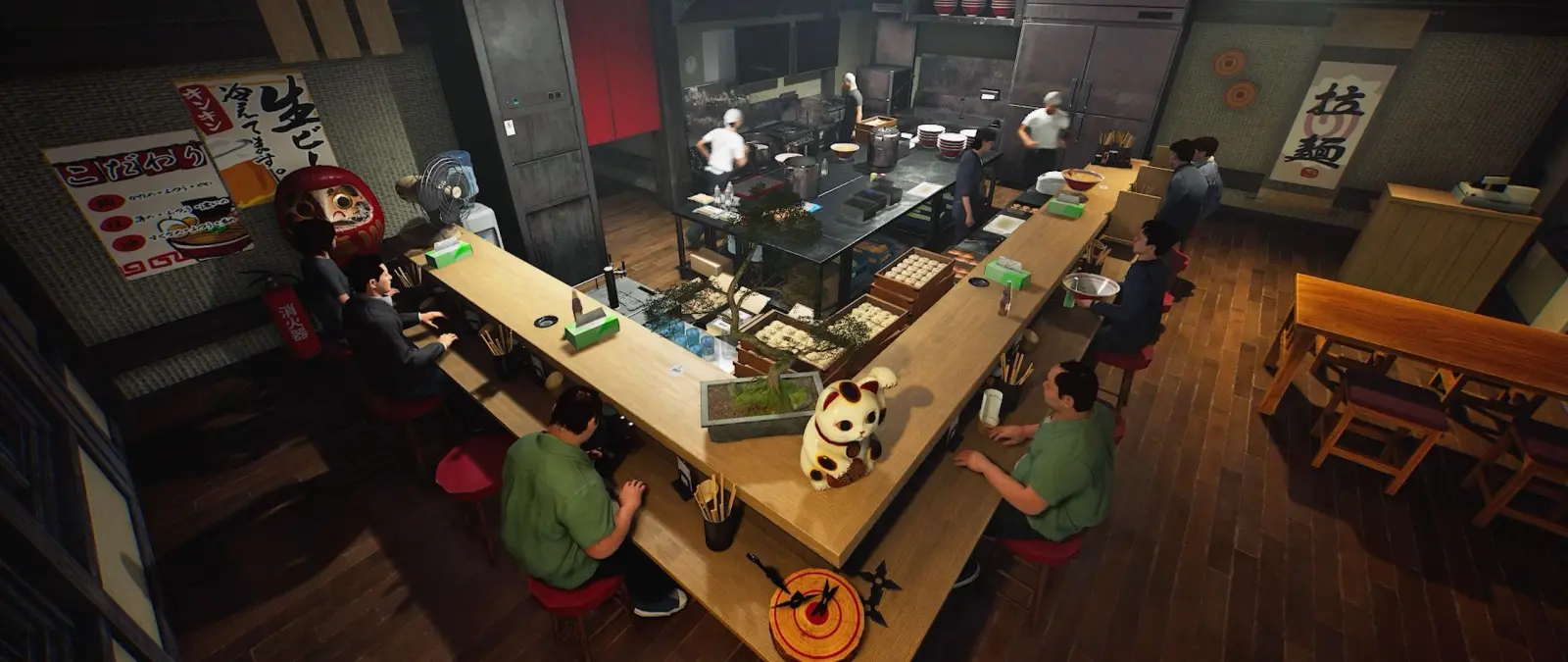
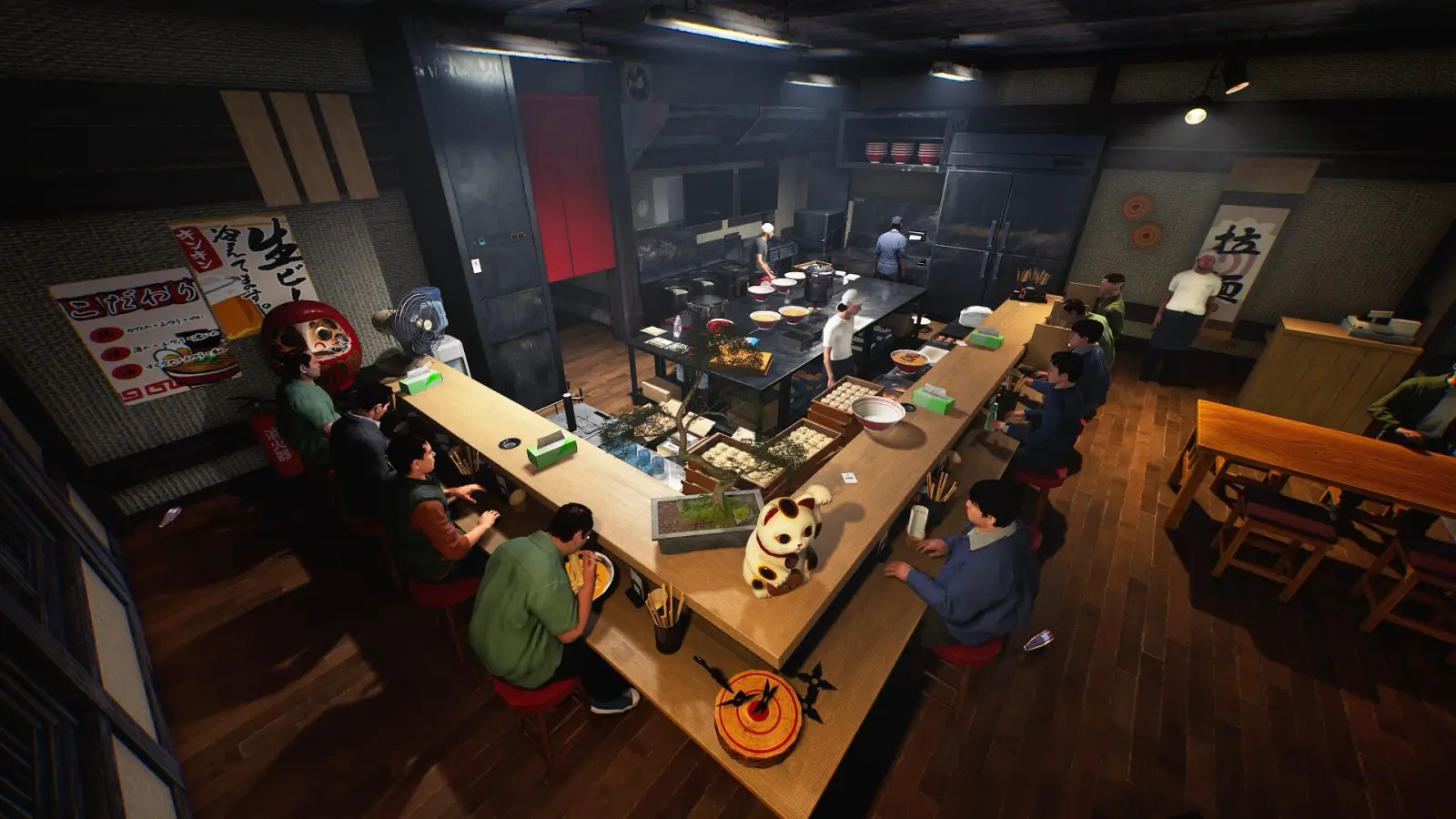
Daruma dolls, a maneki-neko lucky cat and potted bonsai line the counter of a Japanese Ramen Simulator dining hall while customers eat beneath hanging banners and wall menus
PHASE 03

Step 3: Set the Mood with Japanese Interior Decor

Screenshots of the finished shop show a dining hall dressed from floor to ceiling: a red daruma on the shelf, a maneki-neko beckoning cat beside the pass, bonsai planted in wooden crates, menu posters pasted along the walls and vertical banners hanging high. Customers slurp at the counter right beside them — the decor you pick becomes the atmosphere every guest eats in.

📸 The furnished dining room: daruma, maneki-neko, bonsai and vertical ramen banners all on display.
Before opening, a Japanese Ramen Simulator owner can walk the full dining hall past the menu wall, hanging banners and every counter stool to check the finished shop layout
PHASE 04

Step 4: Run a Pre-Opening Walkthrough

With the editor saved, furniture placed and decor set, do one last lap before you flip the sign to open. Check that every noren and banner hangs straight, that aisles between carried-and-dropped furniture stay wide enough for staff, that the menu wall reads clearly from the entrance, and that every counter stool and tabletop made it back into position. A tidy, readable shop is the last impression customers get before the first order fires.

📸 Final walkthrough before doors open — seating, decor and menu wall all in place.

Day 1 official My Designs & build updates OFFICIAL

  • My Designs can display on the Wide Noren.
  • Starter sign can no longer be sold; sign interact range increased.
  • My Designs picker prioritizes shape-fit designs; build mode shows equipment names.
  • Cannot switch to design mode while placing/moving buildings; gamepad drawing fix.

Frequently Asked Questions (FAQ)

Q1.Can you customize your shop in Japanese Ramen Simulator?

Yes. The official trailer shows a full design editor for noren curtains and signs, and 4Gamer press screenshots show furniture being carried and re-placed around the shop. Decorations such as daruma, maneki-neko, bonsai and hanging banners appear throughout the revealed interiors.

Q2.What is the noren editor?

A drawing tool for your shop banners. Visible features include a brush, eraser, paint bucket, eyedropper and move tool; brush size and transparency sliders; an 8-color preset palette with hue, vividness and brightness sliders; a color history row; and a text tool that renders up to 10 characters vertically in the NotoSansJP font with adjustable text size, line spacing and letter spacing. A save button stores the design, and it then appears as a noren banner inside your shop.

Q3.Can you move furniture and redesign the shop layout?

Yes. Press footage shows a chef carrying a prep table covered in a green highlight — the placement-mode preview showing where the piece will land before you drop it. Tables, counters and cooking equipment can be rearranged, so the interior layout is fully rebuildable.

Q4.Does decoration affect gameplay or customer ratings?

Wild Dog has not published any numbers tying decor to bonuses or ratings, so treat such claims as rumors for now. What is confirmed is that the shop customization systems exist and that customers dine inside the decorated space. Any gameplay effect of interior design has no official numbers.

Q5.What changed for My Designs on Day 1?

Wide Noren support, starter sign unsellable, larger sign interact, shape-first picker, equipment names in build mode, no design mode while moving buildings, gamepad drawing fix — see the changelog.

Q6.What is Living Up to the Sign?

Steam official: apply a My Design for the first time. See the achievements list.

Q7.What is A New Look for the Owner?

Steam official: customize your owner appearance in the wardrobe for the first time.

Q8.Is Japanese Ramen Simulator playable now?

Steam Early Access is live since Oct 9, 2026 (v0.1.50.17746).

Q9.Is Japanese Ramen Simulator coming to console?

For now the game is confirmed for PC via Steam only. No PlayStation, Xbox or Nintendo Switch versions have been announced.

Q10.How many players can run one shop together?

Up to six players in online co-op, with solo play also supported — one shared kitchen, from the broth station to the counter.